


Video Compressor & Converter
4.52.08K Reviews
App Specs
- Version
- 4.0.1
- Updated On
- License
- Free
- Downloads
- 10,000,000+
- Developer
- TarrySoft
- Categories
- Video Players & Editors
- Platform
- Android, iOS
Screenshots
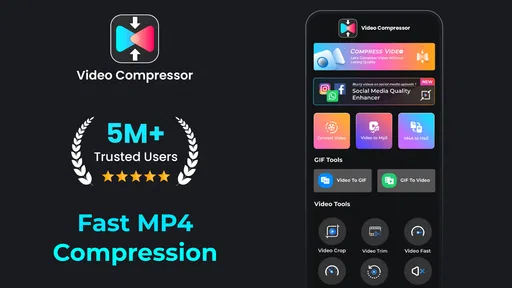
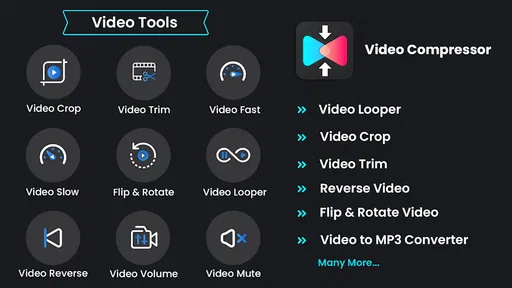
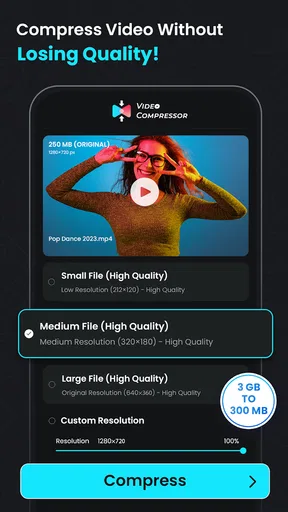
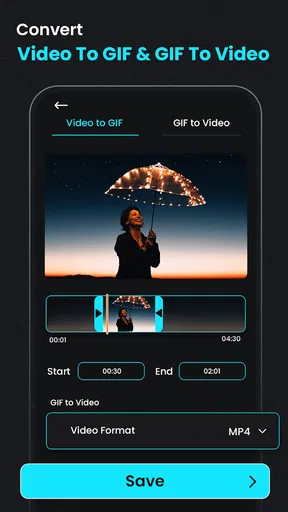
 Analysis by AppCompare
When a video is too large to send or keep on my phone, I want a quick fix that doesn’t turn a simple task into an editing project. That’s the problem Video Compressor & Converter is aimed at: shrinking clips and preparing them for a different use. It’s a free video tool from TarrySoft, and its 4.5 average from around 162,000 ratings suggests it has found a substantial audience. I’d think of it as a practical utility for occasional file jobs, rather than a replacement for a full video editor.
Start with the clip and the reason for changing it
Before I choose any compression setting, I ask what the finished file needs to do. A clip I’m keeping for myself can usually be smaller; a video I plan to show on a larger screen deserves more care with quality. That distinction matters because reducing file size always involves a trade-off. A smaller export can be easier to store or share, but pushing the compression too far may make details look softer or motion less pleasing.
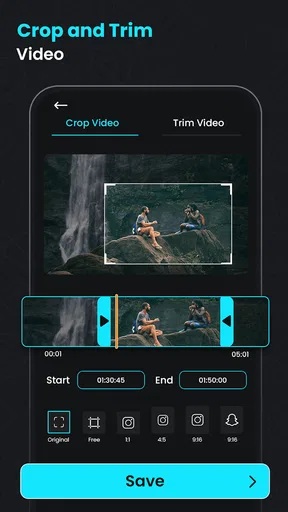
This is where a dedicated compressor is more useful than simply trimming a video in a general editor. Trimming removes unwanted footage; compression changes how the remaining video is encoded so it takes up less space. If a clip is already short but still too large to send, trimming won’t solve the real problem. I’d start with the intended destination, then choose a sensible size and quality rather than automatically selecting the smallest output.
Choose a workflow that matches the job
The interface presents the core tasks plainly: compress a video or convert it. That makes the first decision easy, even if you don’t know much about codecs. For a storage problem, I’d begin with compression and compare the available resolution and quality choices. For a compatibility problem, I’d use conversion instead. Those are related jobs, but they aren’t interchangeable: changing a format doesn’t necessarily make a file much smaller, and compression alone may not make it suitable for every player or destination.
The app also offers controls for bitrate and frame rate. I’d leave those alone for a casual job unless I had a clear reason to change them. Lowering bitrate can reduce file size, but it can also make fast movement or fine texture look worse; changing frame rate can alter the feel of motion. A useful approach is to keep one original, make a test export, and inspect it before processing a whole set of important clips. That small check is more reliable than guessing from a setting label.
For example, imagine I’ve recorded several short videos at a family gathering and want to send them to relatives. I can select the clips, use batch processing, and make a smaller set instead of opening each one separately. I’d first test one representative clip, especially if it contains quick movement or dim indoor footage. If that result still looks good on my phone, I can use similar settings for the rest. If it looks rough, I can back off the compression before committing to the batch.
Think about the handoff, not just the export
A compressed or converted file is useful only if it ends up where I need it. I’d treat the output as a new copy and check that it plays properly before deleting or replacing the original. This is particularly important when the source is a one-off recording: an export that looks acceptable in a small preview may reveal softness or artifacts on a bigger screen. Keeping the original until the handoff is complete gives me a way back if the result isn’t right.
Worth Reading Before You Choose

EA SPORTS FC Mobile 26 Is a Bigger Football Game, but It Takes Time

Flipboard Shows What News Apps Must Do Beyond the Feed

Switching to Android Auto Means Rethinking Your Driving Routine

Google Calendar Makes a Crowded Week Easier to Manage

Ludo King Makes the Most of the Minutes Between Plans

Baby Panda World Brings Quick Play to Modern Phones, but Its Game Library Feels Busy
Batch processing is convenient when many clips need the same treatment, but it isn’t always the best choice for a mixed folder. A night video, a bright outdoor scene, and a clip with rapid action can react differently to the same compression level. I’d group similar footage together or process the most demanding clip first as a quality check. That extra bit of sorting can prevent a whole batch from ending up smaller but noticeably worse.
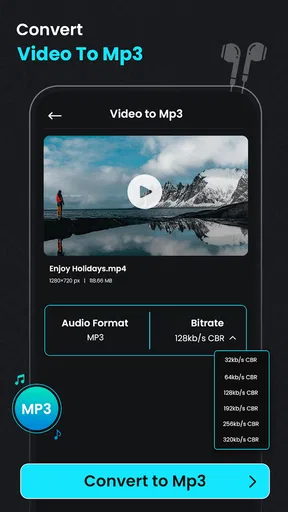
Audio extraction serves a different kind of handoff. If I only need spoken words or a piece of sound from a video, extracting the audio avoids keeping a large visual file for a task that is really about listening. I’d still consider whether I need the whole soundtrack or only a particular passage; if I need detailed sound editing or precise trimming, a dedicated audio editor is likely a better next step.
How it fits into everyday video tasks
As a video player and editing utility, this app sits between the basic tools built into a phone and a feature-heavy desktop editor. The built-in gallery is often enough for quick trimming or sharing, but it may not offer the same direct control over compression. A full editor gives more room for arranging clips, adding titles, and shaping a finished piece, but that can be unnecessary when all I want is a smaller file. This app makes most sense in that middle ground: file preparation, not creative editing from start to finish.
Features Galore
So what can this app do? Well, just like its name suggests, it compresses and converts videos. But it’s not just about reducing file sizes. You can choose the resolution and quality of your compressed video, which means you can still keep it looking sharp even if it’s smaller. And for those of us who are a bit more tech-savvy, there are advanced settings to tweak the bitrate and frame rate. It’s like having a mini editing studio in your pocket!
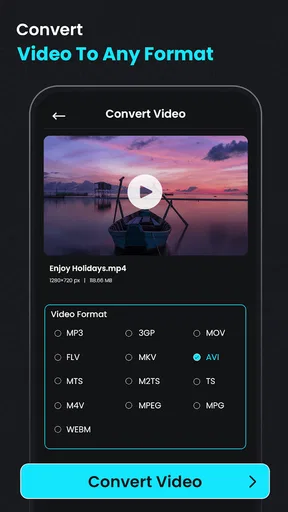
Now, onto the conversion feature. Whether you need your video in MP4, AVI, MOV, or any other format, this app’s got you covered. I tried converting a couple of my videos, and the process was smooth and quick. No unnecessary waiting around, which is always a plus in my book.
Performance and Usability
Let’s talk performance. I was pleasantly surprised by how fast the app processes the videos. Even the larger files didn’t take forever to compress or convert. The app runs butter-smooth, and I didn’t encounter any crashes or bugs during my test runs. It’s stable and reliable, which is exactly what you need when dealing with important files.
The usability factor is another big win. The app guides you through each step, making it user-friendly even for those who might not be tech experts. You don’t have to second-guess where to click or what option to choose. Everything is laid out in a logical and intuitive manner.
What I’d check before using it regularly
Although the app is free to install, it includes in-app purchases ranging from under a dollar to just under a hundred dollars per item. I’d check the purchase screen carefully before confirming anything and decide whether the free workflow already covers my needs. If I only compress an occasional clip, I wouldn’t assume I need to pay; if an option is presented as a purchase, I’d make sure I understand what it unlocks before proceeding.
It’s rated for Everyone, has reached over 10 million installs, and its current version is 4.0.0. The release date was October 8, 2020, and it requires Android 7.0 or later. Those details make it easy to judge basic compatibility, but the more important practical question is whether the phone has enough free space to hold both the source and the newly created copy while processing. Before starting a large job, I’d clear room for the output rather than wait until an export is nearly done to discover storage is tight.
For a quick share, I’d also check the result in the same app or service I intend to use. Some destinations apply their own compression after upload, so making a very small copy beforehand can mean quality is reduced twice. When a platform is going to recompress the video anyway, a moderately sized, clean source may be a better handoff than the smallest possible export.
Hidden Gems
One feature that really stood out to me was the batch processing. You can select multiple videos and have them compressed or converted in one go. This is a massive time-saver, especially if you’re working with a large collection of videos. It’s these little touches that make the app not just functional but also incredibly convenient.
Another cool thing is the app’s ability to extract audio from videos. So if you’ve got a particular piece of music or dialogue you want to keep, you can easily convert the video to an audio file. Handy, right?
Who will get the most from it
I’d recommend this kind of workflow to someone who regularly runs into oversized phone videos, needs a different file format for playback, or wants to process several clips without opening a more complicated editor. It is especially handy when the goal is straightforward: make a copy smaller, create a compatible version, or keep the sound without the video. The combination of simple choices and more adjustable encoding settings gives beginners a clear starting point while leaving room for careful users to refine the result.
I’d skip it if my main goal were to build a polished video with transitions, captions, layered sound, or detailed color work. Those are editing tasks, and a converter is not a substitute for a timeline-based editor. I’d also avoid relying on aggressive compression for footage I want to archive as my only copy. In that situation, storage space or a backup drive is a safer solution than permanently trading away image quality.
One question people often have is whether conversion and compression do the same thing. In practice, I’d choose conversion to change the file’s format for compatibility, and compression to reduce its size; sometimes a task may involve both, but I’d inspect the output rather than expect a format change alone to save space. Another common concern is whether a smaller export will still look good. There’s no single setting that suits every clip, so a short test using representative footage is the sensible answer.
Final Thoughts
In a world where storage space is always at a premium and different devices require different video formats, Video Compressor & Converter is a lifesaver. It’s efficient, easy to use, and packed with features that cater to both beginners and advanced users. Sure, there are other apps out there, but this one really hits the sweet spot between functionality and user-friendliness.
If you’re looking to free up some space on your device or need a reliable way to convert videos for different platforms, give this app a shot. It’s a solid tool that delivers on its promises without any fuss. So go ahead and check it out—I’m pretty sure you’ll end up loving it as much as I do!
My practical recommendation
I’d use it as a focused utility and make each export answer a specific need: smaller for sharing, another format for playback, or audio when the picture is unnecessary. I’d keep the source until I’ve checked the new file, avoid applying one harsh setting to every kind of footage, and compare the result on the screen where it will actually be watched. With those habits, the app’s controls are useful without turning a routine phone task into trial and error.
Pros
- Supports multiple video formats.
- Fast compression without quality loss.
- User-friendly interface.
- Batch processing capabilities.
- Customizable compression settings.
Cons
- Limited free version features.
- Contains in-app advertisements.
- Requires internet for some features.
- Occasional app crashes reported.
- Limited customer support options.
FAQs for Video Compressor & Converter
How does Video Compressor & Converter work?
Video Compressor & Converter functions by reducing the file size of videos without significantly compromising quality. It uses advanced algorithms to compress video data, making it easier to store and share. Additionally, it can convert videos into different formats, ensuring compatibility across various devices and platforms.
What video formats does the app support?
The app supports a wide range of video formats including MP4, AVI, MOV, and MKV. This versatility ensures that users can compress and convert nearly any video file type they encounter, making it a comprehensive tool for managing video files on both Android and iOS devices.
Will compressing a video affect its quality?
While compressing a video typically reduces its file size, the app is designed to minimize quality loss. Users can choose different compression levels, balancing file size reduction with acceptable quality. The app provides previews to help users decide on the best settings for their needs.
Is it possible to batch process videos with this app?
Yes, Video Compressor & Converter offers batch processing capabilities. Users can queue multiple videos, saving time by processing them simultaneously. This feature is particularly useful for users who need to manage large amounts of video content quickly and efficiently.
Does the app support cloud storage integration?
The app integrates with popular cloud storage services such as Google Drive and Dropbox. This feature allows users to easily upload and download videos directly from the cloud, facilitating seamless file management and ensuring access to compressed and converted videos from any device.


